Settings
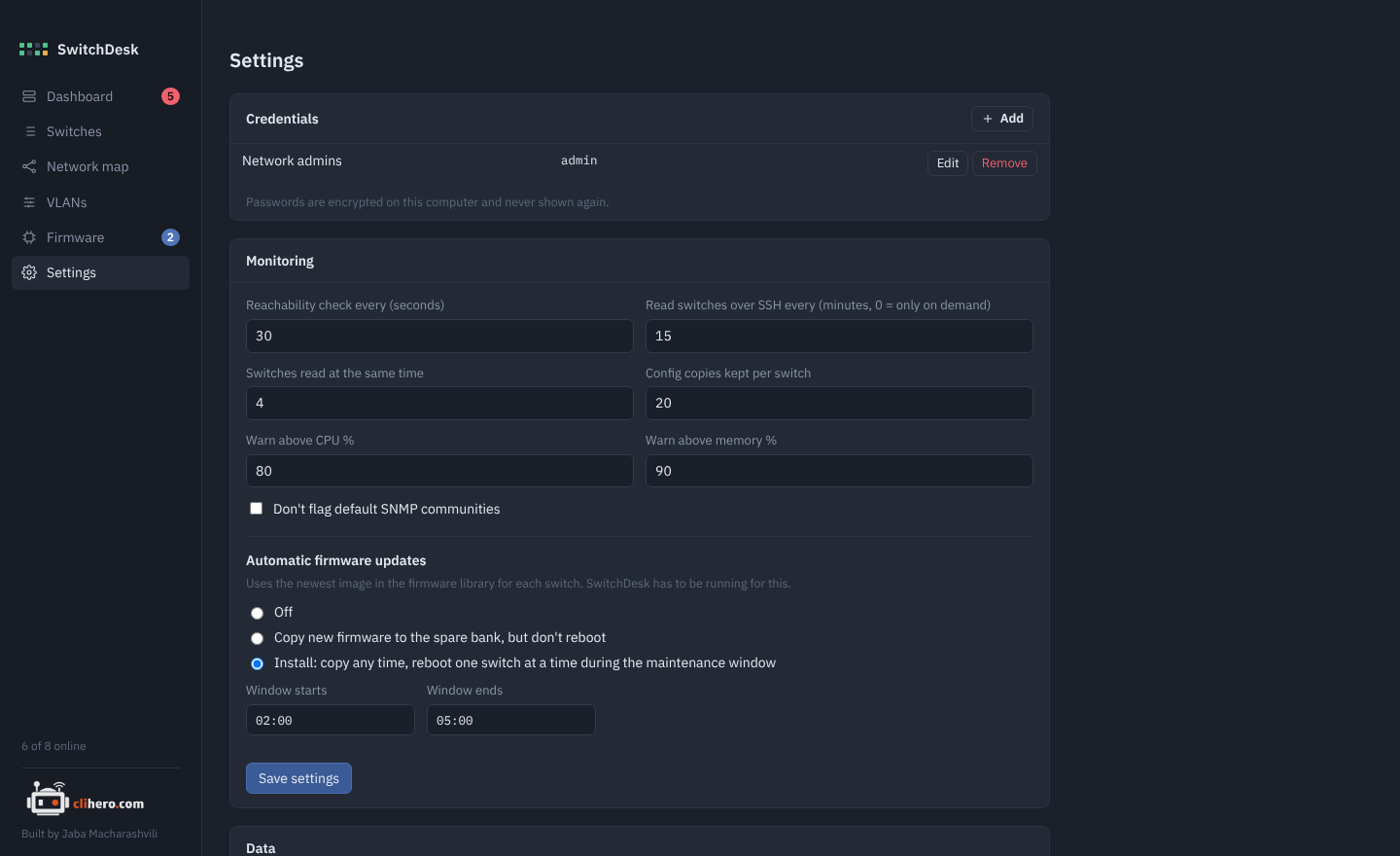
Credentials
Shared username and password sets. Add as many as you need and pick one per switch. Editing a set and leaving the password empty keeps the old one. A set that's still in use can't be removed.
Monitoring
| Setting | Default | What it does |
|---|---|---|
| Status check | SSH port | How SwitchDesk tells whether a switch is up between reads. See below. |
| Check every | 30 seconds | How often the status check runs. Not used when the check is off. |
| Read switches over SSH every | 15 minutes | How often each switch is logged in to and read. 0 means only when you click Collect now. |
| Switches read at the same time | 4 | Up to 16. Higher is faster on big networks. |
| Config copies kept per switch | 20 | Older copies are deleted. |
| Warn above CPU % | 80 | |
| Warn above memory % | 90 | |
| Don't flag default SNMP communities | off | For networks where public is expected. |
Status check
- SSH port: opens a TCP connection to each switch's SSH port (or web port for Instant On) and closes it. Fast and works through most VPN and zero trust setups, but the switch logs every check as an SSH connection.
- Ping (ICMP): pings each switch with the computer's own
pingcommand. No SSH connections at all, but ICMP has to reach the switches. Many zero trust tunnels only carry TCP, so switches can show offline there. - Off: no background checks. A switch's status only changes when it's read: on the Read switches over SSH every schedule, or when you click Collect now. A switch that can't be reached is marked offline; one that answers but refuses the login still counts as online. With the read interval at 0 as well, SwitchDesk only connects when you ask it to.
Automatic firmware updates
Off, copy only, or install inside a maintenance window. See Firmware updates.
Data
The data folder, export and import. See Your data.
About
The version you run, a link to clihero.com and the GitHub repository, and Check for updates.