First steps
Add a switch
Open Switches and click Add switch.
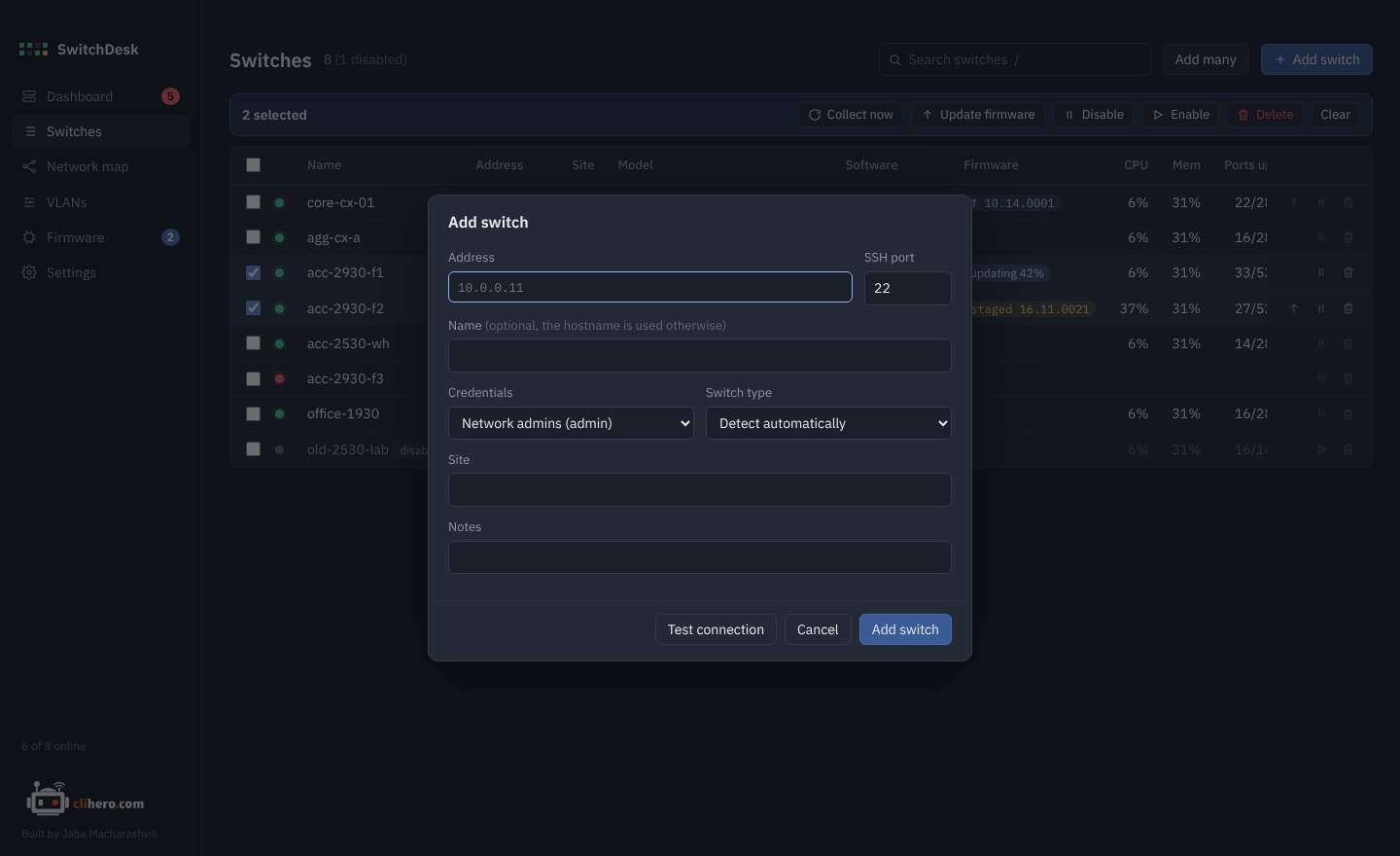
- Address is the IP or hostname you'd SSH to. Change the port if the switch doesn't use 22.
- Name is optional. Without one, SwitchDesk uses the hostname it reads from the switch.
- Credentials are shared sets of username and password. Pick an existing one or choose New credentials… to add one right there.
- Switch type can stay on Detect automatically. SwitchDesk reads
show versionand works out whether it's AOS-CX, AOS-S or Instant On. - Site and Notes are for you. Site is searchable.
Test connection logs in and shows the hostname, family and SSH host key before you save, so typos show up straight away.
The first reading starts as soon as you save.
Add many at once
Add many takes one switch per line:
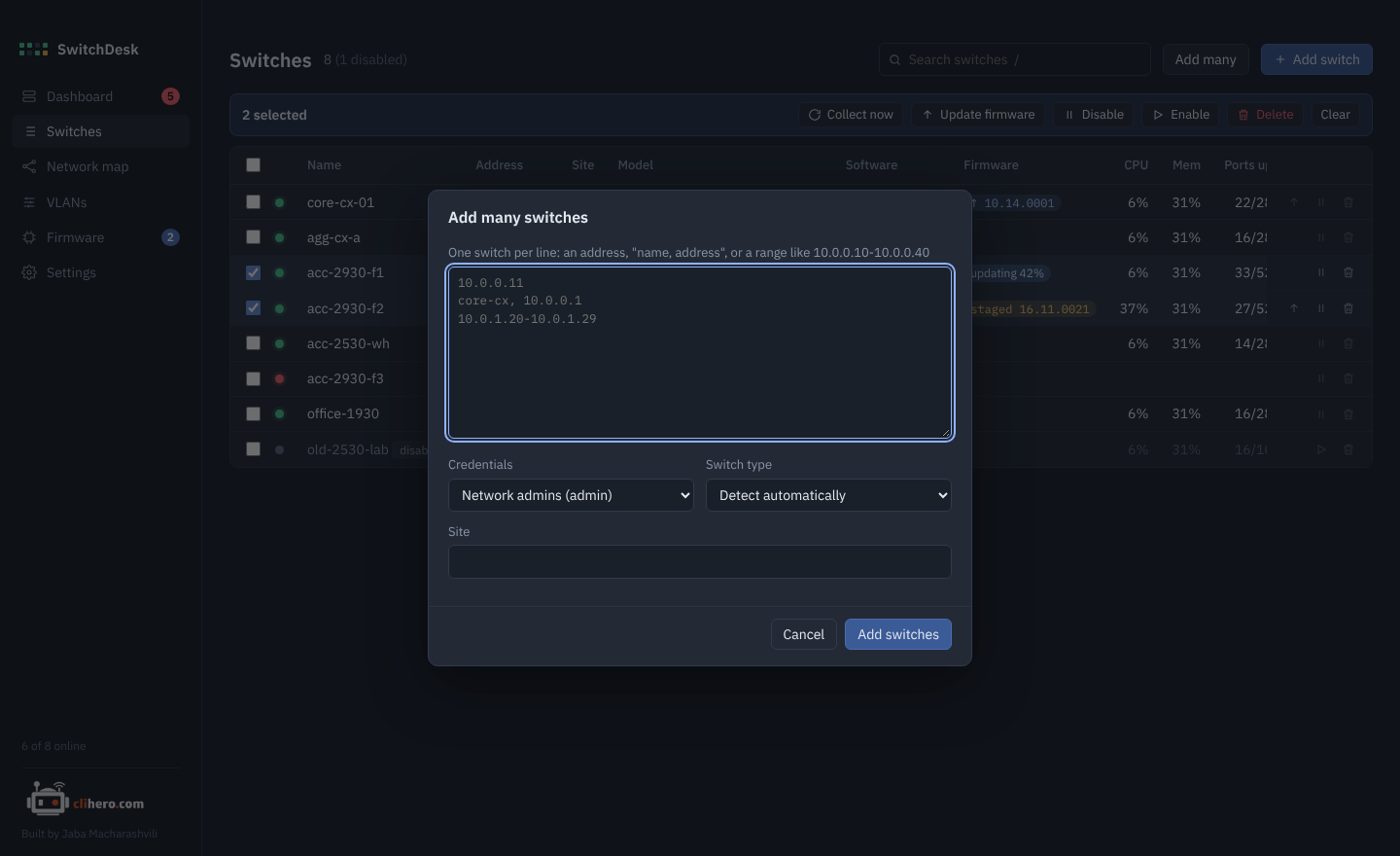
10.0.1.11
core-cx, 10.0.0.1
10.0.1.20-10.0.1.40
10.0.2.5 office-1930
Each line can be a plain address, name, address, address name, or a range of addresses in the same subnet. All of them get the credentials, type and site you pick below the list. Addresses already in SwitchDesk are skipped and listed.
What happens next
Once a switch is added, SwitchDesk:
- checks it can reach the switch's SSH port every 30 seconds,
- logs in and reads the switch every 15 minutes (and right away the first time),
- keeps a copy of the running config each time it changes,
- raises anything that needs attention on the dashboard.
Both intervals can be changed in Settings. Collect now on the dashboard or on a switch page reads immediately.
What SwitchDesk runs on your switches
Reading a switch only uses show commands, plus no page to turn off paging for the session. The full list is in the Raw output tab of every switch, next to what each command returned.
Changes only happen when you ask for them: VLAN edits (shown to you first) and firmware updates.
Keyboard
| Key | Does |
|---|---|
| / | Jump to the switch search |
| Esc | Close a dialog |
| Up / Down | Previous commands in the console |