First steps
Add a phone
Click Add phone and enter the phone's address. Choose or create credentials: the phone's web login, usually admin and whatever you set as the admin password. Leave the scheme on auto and PhoneDesk tries HTTPS first, then HTTP.
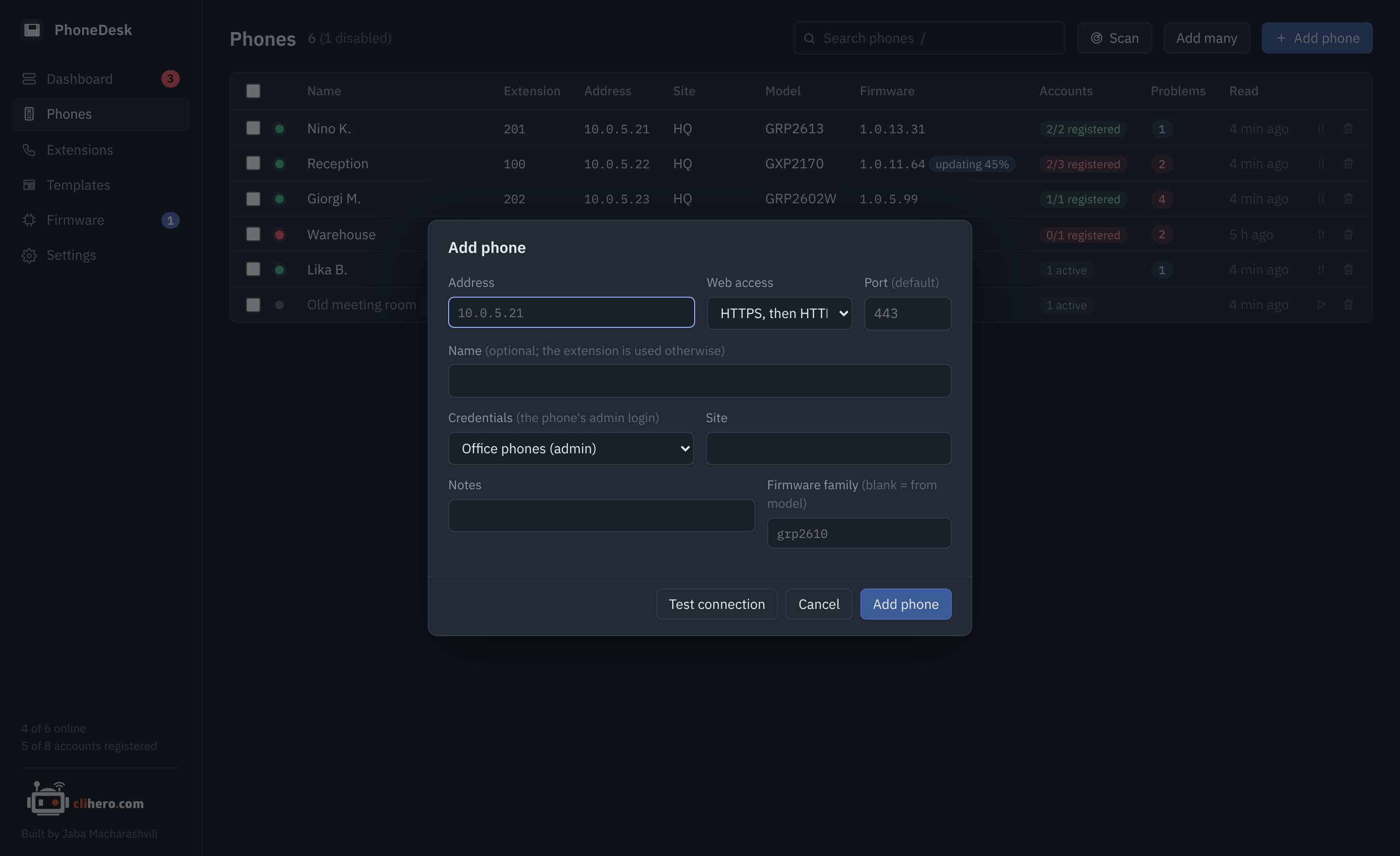
Test connection logs in and shows the model, firmware and MAC, so you know the login works before you save. The name is optional; without one, PhoneDesk shows the display name and extension of the first active account.
Or find them
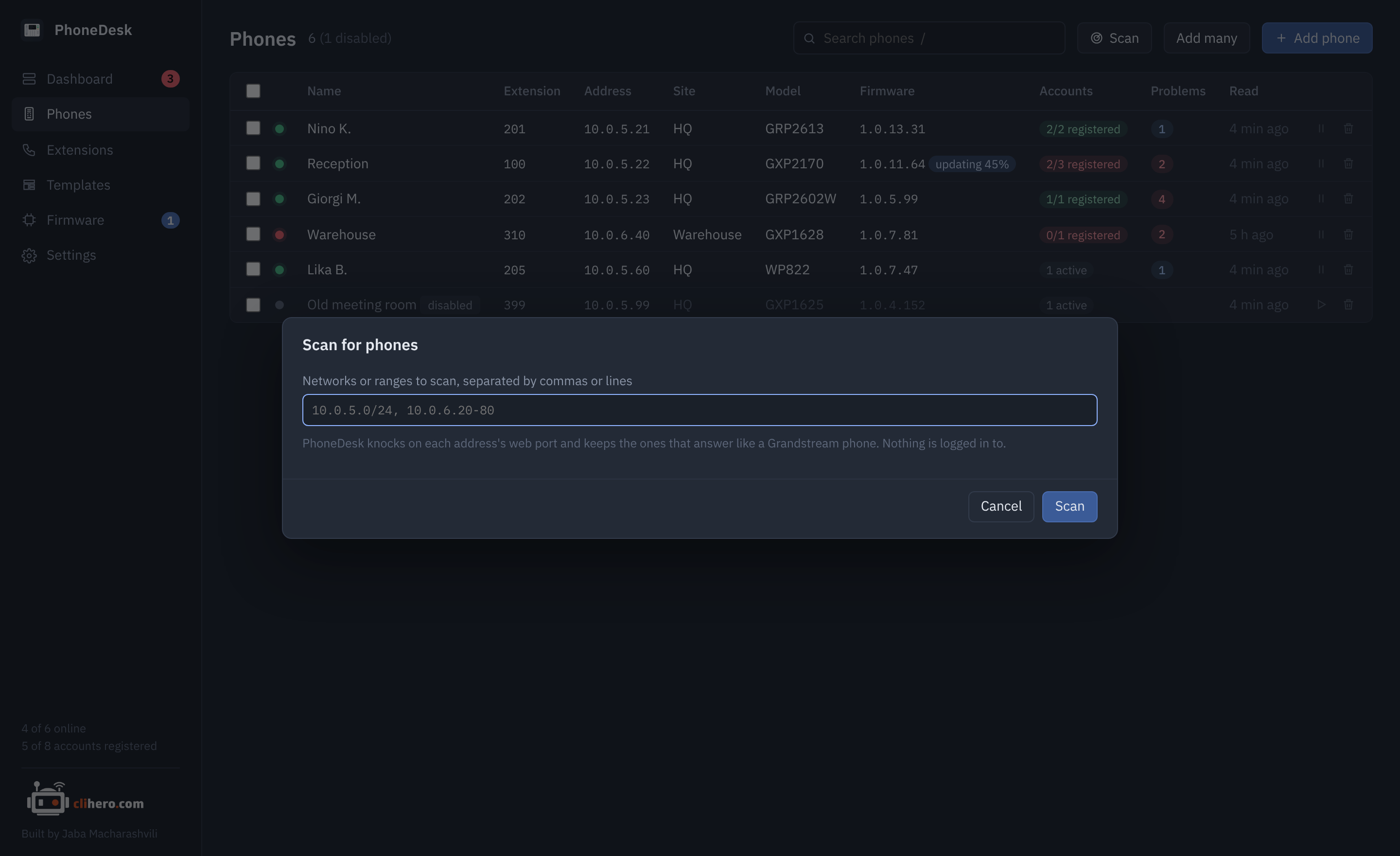
Scan takes networks like 10.0.5.0/24 and ranges like 10.0.6.20-80, knocks on each address's web port and keeps the ones that answer like a Grandstream phone. Nothing is logged in to during a scan. Tick the phones you want, choose credentials and a site, and they're added.
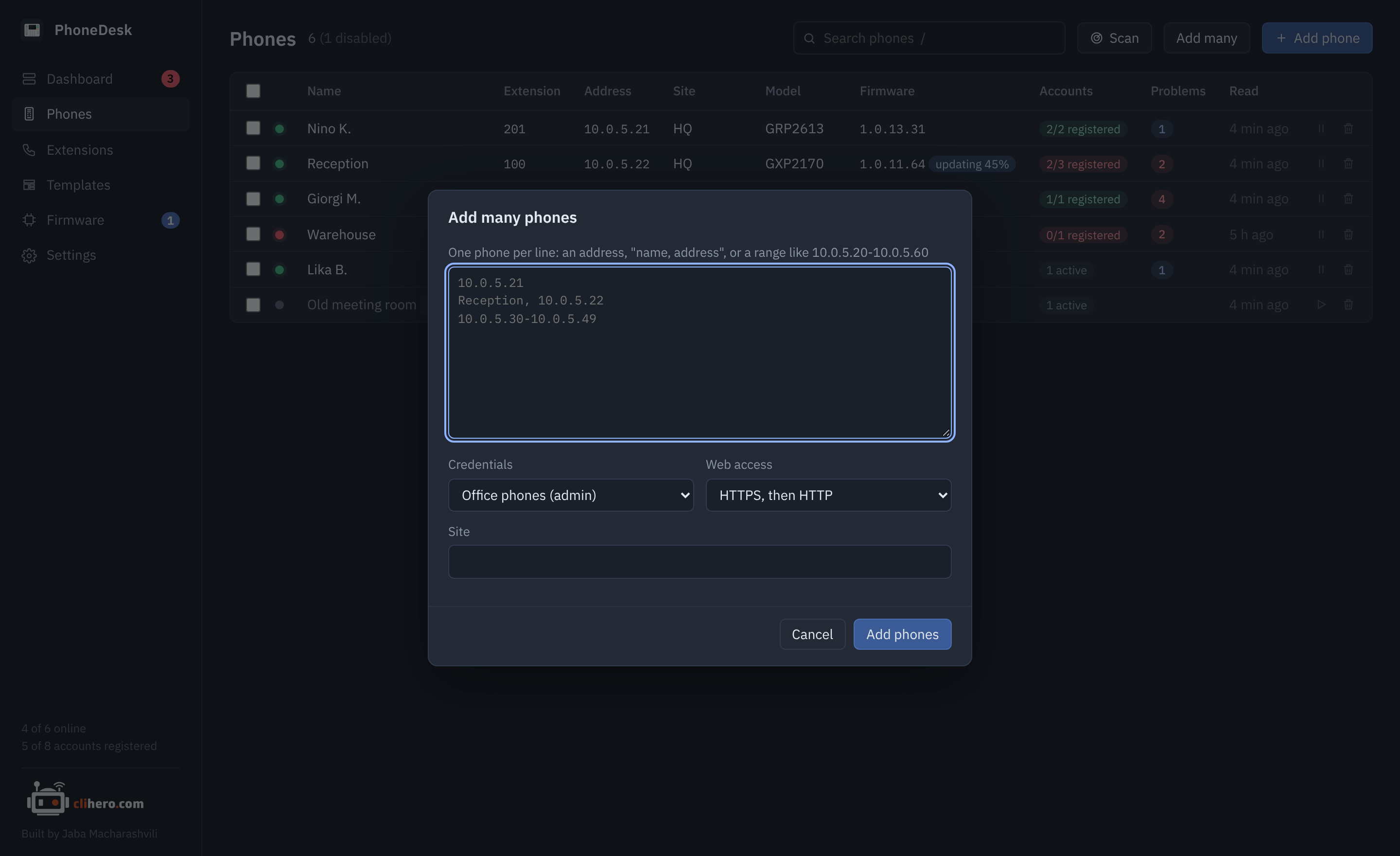
Add many takes a pasted list, one phone per line: an address, name, address, or a range.
What happens next
The first read starts right away. After that:
- Reachability is checked every 30 seconds by opening the phone's web port.
- Each phone is re-read every 15 minutes, four at a time.
- A copy of the phone's settings is saved whenever they change.
All of this is adjustable in Settings.
Registration state
Whether an account is registered comes from the phone's live line status, which the phone only shares when Action URI support is turned on in its web UI (Settings → Remote control on GRP phones; older GXP models have it under Settings too). Until then the accounts show as "unknown" and the dashboard can't tell you about a dropped registration. Everything else works without it.
Next
- Dashboard and problems: what the checks mean.
- Templates and provisioning: set NTP, time zone, syslog and the rest on every phone at once.
- Firmware updates: fill the library and update.